
Using Microsoft Copilot for your cross-channel analytics



.avif)
While traveling from city to city to host our AI workshops, we’ve noticed a trend: Plenty of brands require their team members to use Microsoft Copilot, not Claude, as their AI agent. But they struggle to maximize value from it.
It’s true that Copilot does have a few important limitations compared to Claude, especially around building decks and dashboards. We’ll touch on that below.
But you can still use it to run sophisticated analytics and audits, and schedule recurring workflows.
Our Product Manager Kenton Snyder broke down use cases for Copilot in our recent webinar, which you can stream at the link. But for now, here’s a high-level breakdown of how marketplace brands and agencies can get more out of Copilot.
What are the limitations of Copilot for marketplace brands?
First, let's talk about what Copilot can't do (yet).
One of the main roadblocks with Copilot is that it can’t yet create decks or dashboards.
In Claude, you can build performance decks via your MCP data, and then send those decks to PowerPoint for further editing. You can also create refreshable dashboards in the form of Live Artifacts.
Copilot doesn’t support deck creation using MCP data, which means you can’t build sophisticated visuals with your marketplace data.
It also doesn’t let you request end-to-end custom dashboards the way Claude does.
How do you set up a MCP in Copilot?
Kenton Snyder walked through the exact steps for MCP setup in Copilot in the webinar, so we’d recommend following along at the beginning of that video if you need help.
But basically, within Copilot, you connect your MCP data by creating a new, custom agent.
Select New agent > “Build using standard orchestration agent.” Name your agent something like “Amazon analyst,” and click create.
To connect your MCP, go to the Tools section > Add a tool > Model Context Protocol.
What kinds of analytics can you run with Copilot?
While Copilot users will struggle to create custom dashboards and performance decks with their MCP data, it does offer sophisticated analytics capabilities.
Once you’ve created a custom agent that is connected to your MCP, you can start asking Copilot any questions you want about your data.
Just type your questions into the prompt, while ensuring that you give your agent proper context for where to retrieve the data.
You might say “Use Intentwise data for XYZ organization,” for instance, if you’re a customer of Intentwise’s AI Gateway MCP.
Some questions we like:
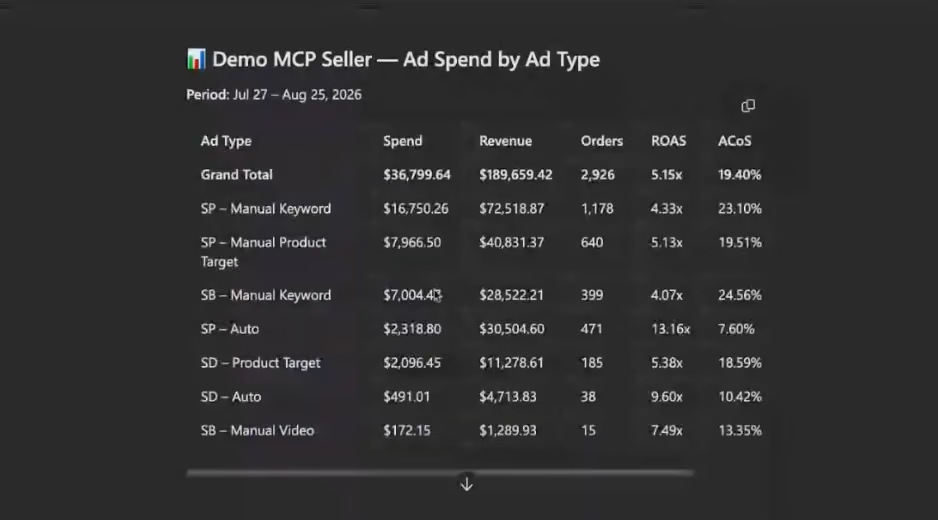
“Show me ad spend by ad type over the last 30 days”
Copilot will return a list of ad spend, revenue, orders, ROAS, ACOS and more across all of your ad types.
Copilot will also often add a set of key takeaways for you, including which of your ad types are the highest spenders, which have the best spend efficiency, and which are seeing concerning ACOS trends.
“Find me products below two weeks of cover with active ad spend”
Copilot will pull up a list of ASINs at risk of a stockout that still have significant ad spend behind them. These are ads that you should probably immediately pause.
Plus, Copilot will often go a step further, identifying not only advertised products at risk of a stockout but also non-advertised products that have limited supply.
“Find keywords that are doing well on Amazon that have spent over $20 in the last few days that are not spending on Walmart”
Intentwise’s AI Gateway MCP connects cross-channel data to Copilot, so you can compare and contrast performance across Amazon, Walmart, and TikTok.
We love prompts like this because they help you synthesize tactics across channels. If an ad targeting strategy is working on one channel, chances are you’re going to want to deploy it on another, too.
These are just a few examples of what you can ask Copilot.
If you want more use cases, we curated a set of prompts for your AI agent in our AI prompt library. Check out the prompt library here.
Building recurring workflows in Copilot
Copilot’s best feature is probably the ease with which it allows brand owners to set up recurring workflows.
Rather than asking the same question again and again every Monday morning, you can have Copilot automatically answer it for you each week, and deliver the results into your email inbox.
To create a recurring workflow in Copilot, click the drop-down in the top-right corner (the button with three dots “…”) and then hit “Scheduled prompts.”
From there, click the “New” button at the top right, and fill in a prompt you want answered on a recurring basis, plus an exact schedule for it.
In the prompt, tell Copilot the source of your data (“Using Intentwise.org AI Gateway,” if you’re a client of ours) and then give it explicit instructions.
For instance, you might say, “Find products below two weeks of cover using last 30 days revenue with active ad spend in the last 7 days.”
Getting as specific as possible is important, since this is a repeatable prompt that needs to make sense even months down the line.
Once you’ve come up with your prompt, Copilot makes it easy to schedule it.
You can select which days of the week you want it to run, at which time, and at what frequency. You can also select start and end times for the scheduled task.
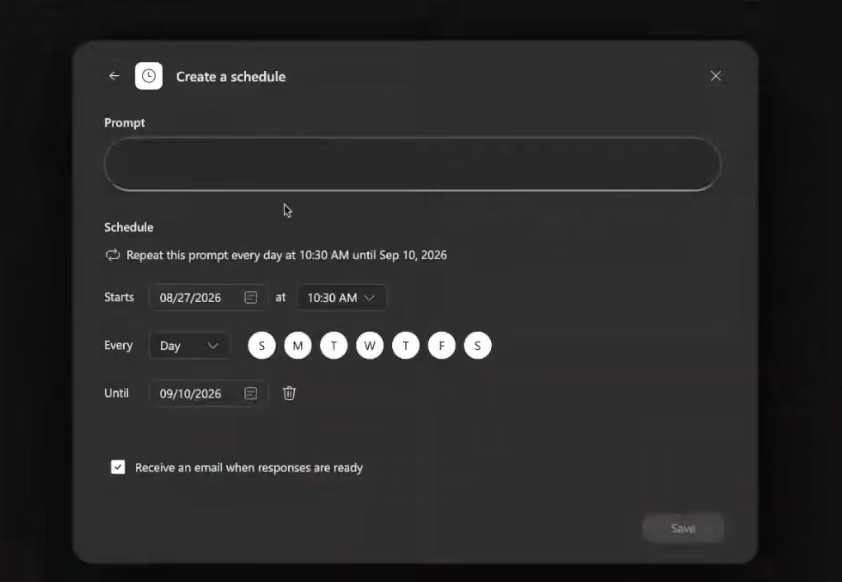
Copilot will deliver an automated email with the results.
Want to get more out of Copilot?
Stream our webinar on Copilot use cases if you haven’t already, and sign up for our AI Gateway MCP, to ensure you feed trusted data into Copilot.
Intentwise unifies your cross-channel data, enriches it with our proprietary data model and knowledge graph, and helps your agent give faster answers in a self-improving loop with our intent-based query engine. Demo it now.