
Guide to Manage Access on Vendor Central Portal



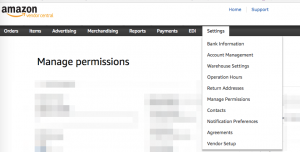
If you want your technology partner or agency to help you with the sales data from within vendor central, you will have to enable access to the vendor central portal. Once you are able to log in to the vendor central account, under the Settings menu, you will find “Manage Permissions”. Select it to go to a screen where you have the option to add users by clicking on the "Add User" button.

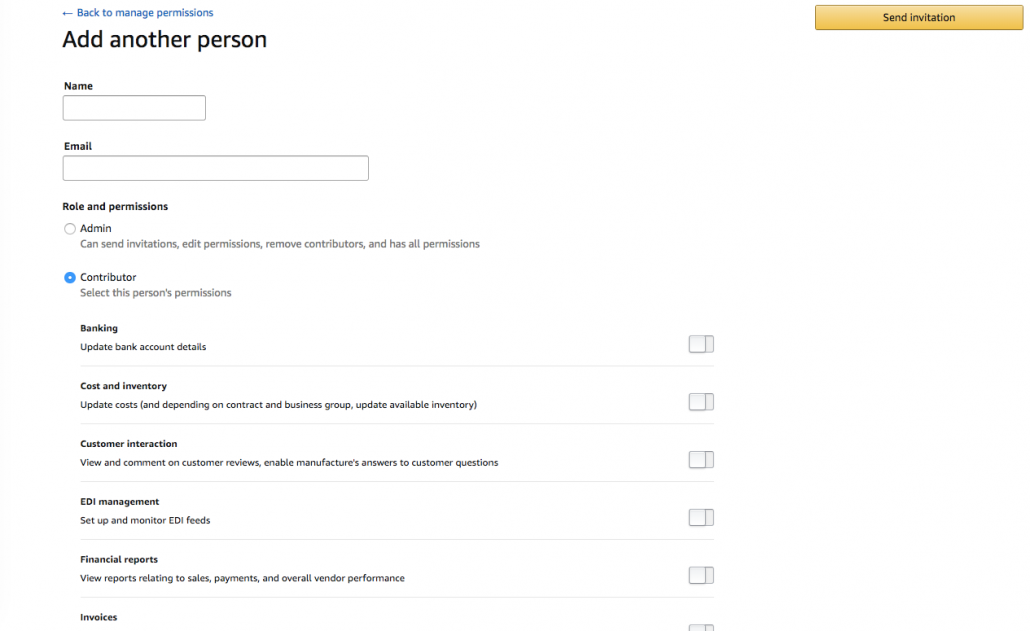
You should be able to add an email for which you would like to provide access. There are two kinds of access that you can provide to your agency or technology partner. "Admin" which has access to send invitations, edit permissions, remove contributors, and has all permissions or "Contributor" wherein you can select what access you would like to provide.If you are working with someone for reporting needs, make sure the below access is enabled for "Contributor"
- Cost and inventory
- EDI management
- Financial reports
- Operational reports
If you are looking for access to Amazon Advertising, you can check it out here.Read our post "Enable Amazon Advertising access to your Technology Partner" for the steps to providing access to your Amazon Advertising account to technology partners.