Hands-on AI workshop · Amazon unBoxed
Automate Amazon Analysis with Claude
Connect Claude to Intentwise
Step 1
Open Claude
Claude Pro subscription is recommended to get the most out of this session
Open claude.ai in your browser, or open the Claude desktop app, and sign in to your account.
Step 2
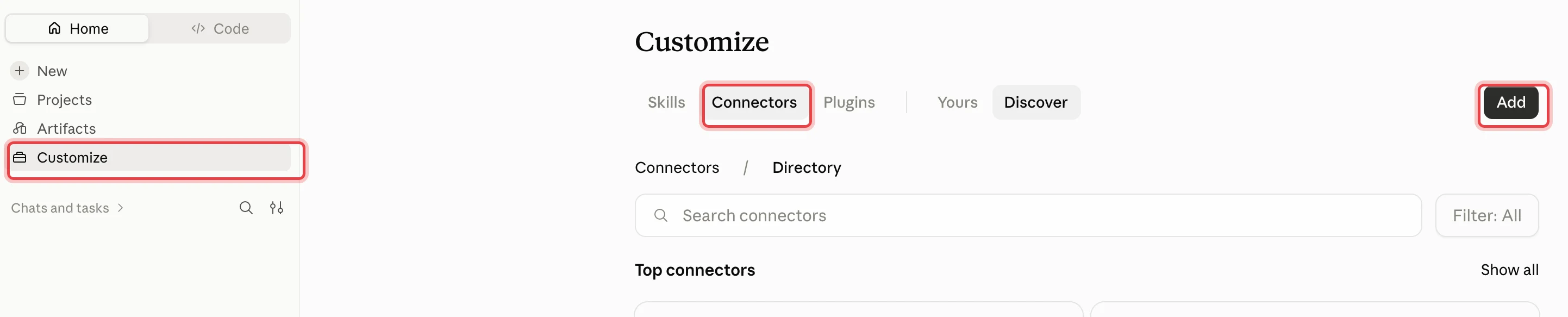
Open Connectors
In Claude, go to Customize, open the Connectors tab and click Add.
On a free Claude plan you can have only one custom connector. If you already have one, remove it first.
Step 3
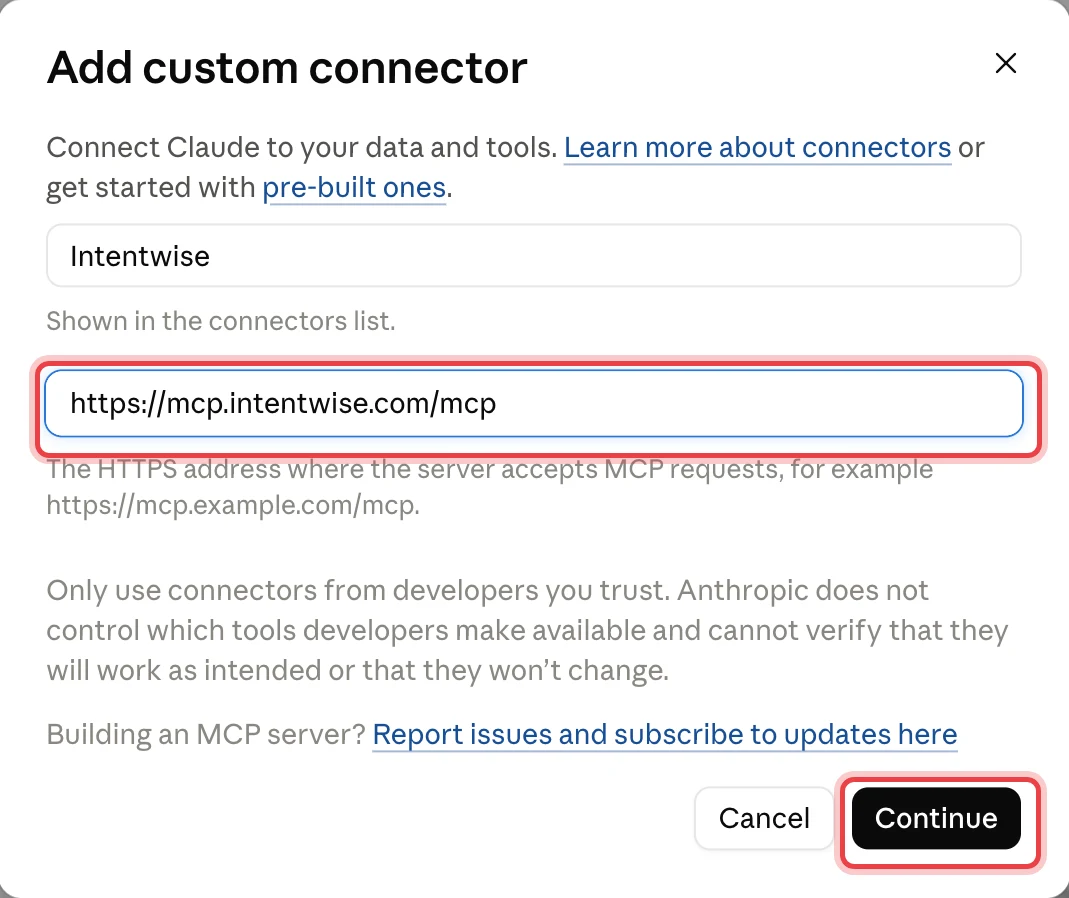
Add the Intentwise connector
Name it Intentwise, paste the server URL and click Continue. Leave the defaults on the next screen.
Server URL
https://mcp.intentwise.com/mcp
Copy
Step 4
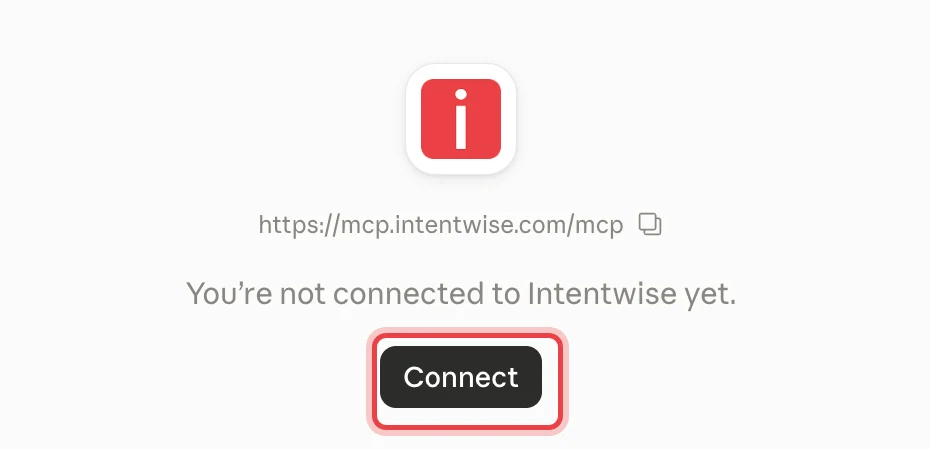
Connect
Open the Intentwise connector and click Connect. A sign-in window opens.
Step 5
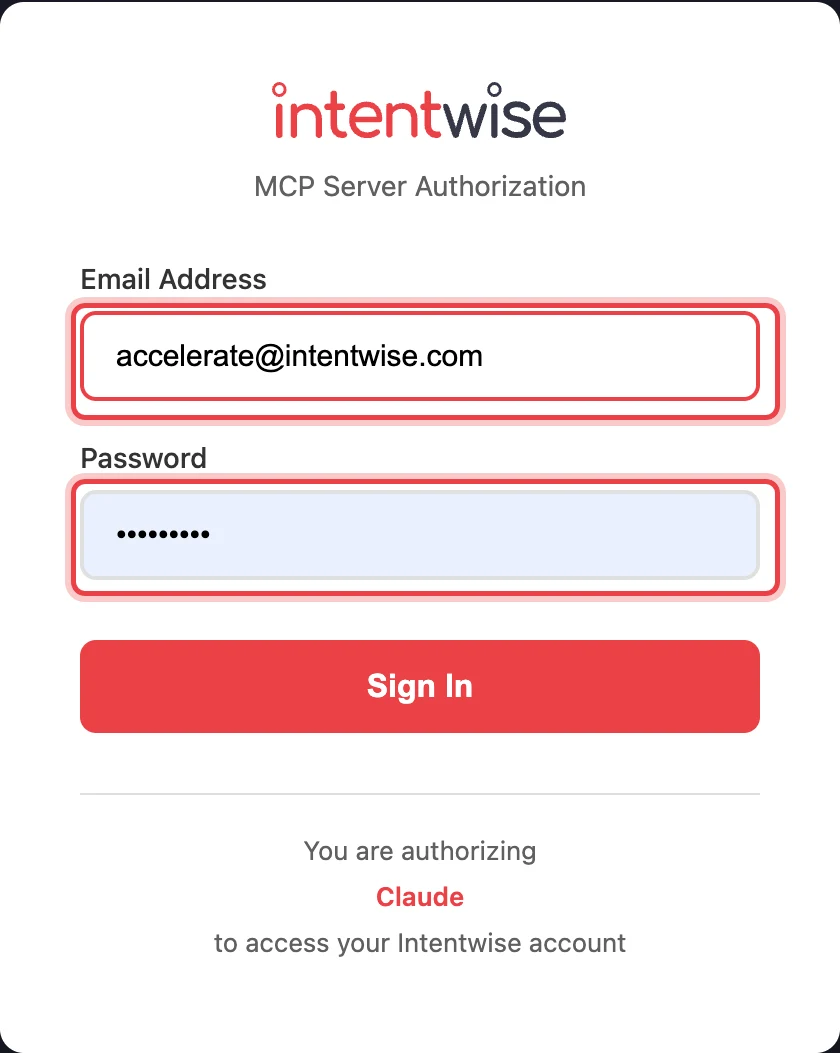
Sign in with the workshop account
Use the shared account below and click Sign In. Same login for everyone, valid for this session only.
Email
Password
Demo@123
Copy
Step 6
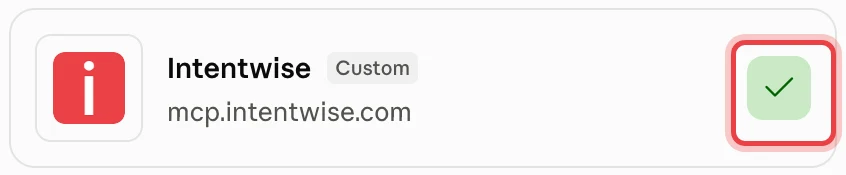
You are connected
Intentwise now shows a green check under Connectors. Start a new chat, click + and switch Intentwise on.
Step 7
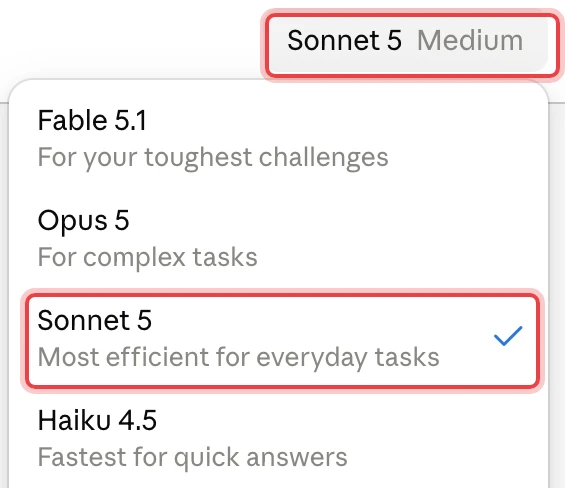
Pick the model
Run every prompt in this workshop on Claude Sonnet. Pick it from the model menu at the top of the chat before you send anything.
Recommended model
Claude Sonnet
Step 8
Send the first message
Paste this as the first message in your new chat. It tells Claude which Intentwise account to work with for the rest of the session.
First message
In this chat, use the Intentwise MCP with the account Demo Vendor using Amazon channel. Answer all questions in the chat only, without building charts or producing files. Also send questions as is.
Copy
Step 9
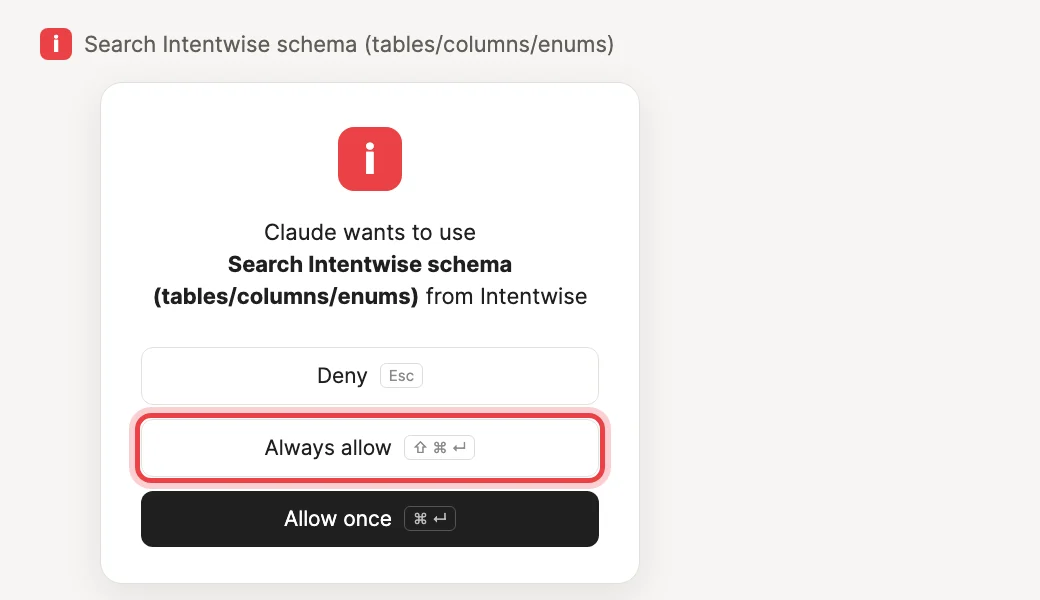
Allow the Intentwise tools
After you run your first prompt, Claude asks for permission to use an Intentwise tool. Click Always allow so it does not ask again for every prompt.
You’re all set for the workshop
Pause here until the session begins.
01
Performance Monitoring
P1
Account Level Performance
How is my account performing in the last 14 days compared with previous period
Copy Prompt
P1
Campaign Type Performance Changes
Compare performance by campaign type in the last 30 days compared to its previous period
Copy Prompt
P1
Hourly Metrics
Show me hourly spend and revenue performance trend for yesterday
Copy Prompt
P1
Product Level Ads
What are my top 10 products by ad spend in the last 14 days
Copy Prompt
P1
Sub Brand Performance
Show me performance data by sub brands for vendor account for the last 30 days
Copy Prompt
01
Diagnostics & Opportunities
P1
High ACoS Campaigns
Find my top 10 spending campaigns above a 40% ACoS in the last 30 days group by campaign name
Copy Prompt
P1
Biggest drivers of ACoS change
Find the campaigns with the largest impact on ACoS changes over the last 30 days, compared to the prior period, based on both change in ACoS and the campaigns spend level
Copy Prompt
P1
Campaign Type Gaps
For each product, show total Sponsored Products (SP) spend and total Sponsored Display (SD) spend as separate columns for the last 14 days — where SP spend is above $100 and SD spend is zero or missing — ordered by SP spend descending
Copy Prompt
P1
Low Inventory Products
Calculate weeks of cover for my top 20 spending products in the last 7 days, by comparing last 7 days units sold with current stock level, and let me know any that fall below two weeks of cover
Copy Prompt
P1
Product Ad Gaps
Identify my top 20 selling products in the last month, and check if any of them are missing from my advertising strategy. Make sure they are each spending across Sponsored Products and Display
Copy Prompt
01
AMC Insights
P1
First vs Last Touch
Using AMC Compare first and last touch attribution queries by ad type and find ad types with variance between first and last touch for the month of Aug 2026
Copy Prompt
P1
NTB vs LTR
Using AMC Find my top 10 products with the highest NTB% for the month of Aug 2026, and separately find product-level lifetime revenue from the most recent LTR execution
Copy Prompt
04
Advertising Actions / Updates
P13
Lower bids on keywords with rising spend
This one is a two-step prompt. Send the first prompt, wait for the result, then send the follow-up in the same chat.
Step 1 · Find
Which 20 keywords have seen the largest increase in spend over the last 7 days
Copy Prompt
Step 2 · Follow-up
Decrease my bids on those keywords by 10%
Copy Prompt
P14
Campaigns with high ACoS
Two steps again. Send the first prompt, review the list, then send the follow-up in the same chat.
Step 1 · Find
Identify any campaigns above a 50% ACoS in the last 30 days with at least $50 in spend
Copy Prompt
Step 2 · Follow-up
Decrease the budget of those campaigns by 10%
Copy Prompt
Skills
Skills help you execute complex tasks and analysis in a consistent, repeatable way, across your team.
Whats Changed
Download skillWhats Changed Enhanced
Download skillWhats Changed Dashboard
Download skillAutomation
Any prompt that works once can run on a schedule. Here is the weekly check we run, set up from scratch in five steps.
Step 1
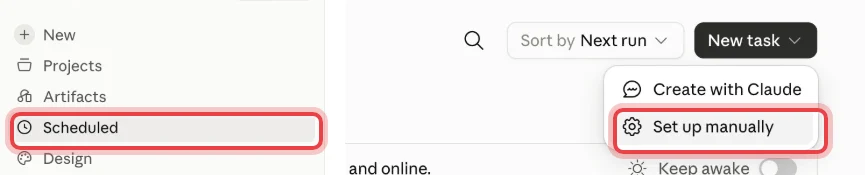
Start a new task
In Claude, open Scheduled in the left sidebar, click New task and choose Set up manually.
Step 2
Name the task
Give it a name you will recognise in the task list.
Name
Amazon Performance Swings
Copy

Step 3
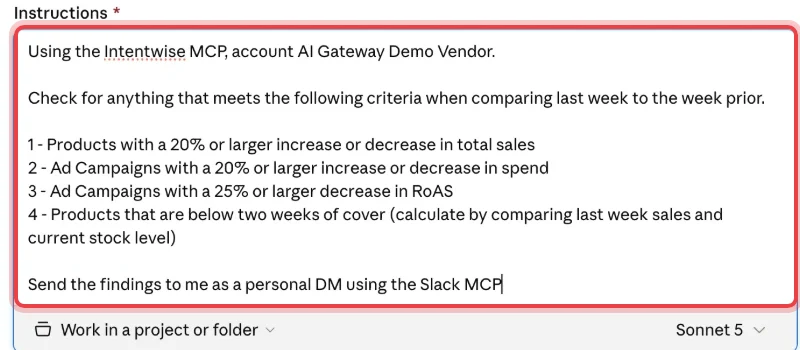
Paste the instructions
This names the account, lists what to look for, and says where to send the findings. The last line delivers to Slack, so change it to suit how you want the results.
Instructions
Using the Intentwise MCP, account AI Gateway Demo Vendor.
Check for anything that meets the following criteria when comparing last week to the week prior.
1 - Products with a 20% or larger increase or decrease in total sales
2 - Ad Campaigns with a 20% or larger increase or decrease in spend
3 - Ad Campaigns with a 25% or larger decrease in RoAS
4 - Products that are below two weeks of cover (calculate by comparing last week sales and current stock level)
Send the findings to me as a personal DM using the Slack MCP
Check for anything that meets the following criteria when comparing last week to the week prior.
1 - Products with a 20% or larger increase or decrease in total sales
2 - Ad Campaigns with a 20% or larger increase or decrease in spend
3 - Ad Campaigns with a 25% or larger decrease in RoAS
4 - Products that are below two weeks of cover (calculate by comparing last week sales and current stock level)
Send the findings to me as a personal DM using the Slack MCP
Copy Prompt
Step 4
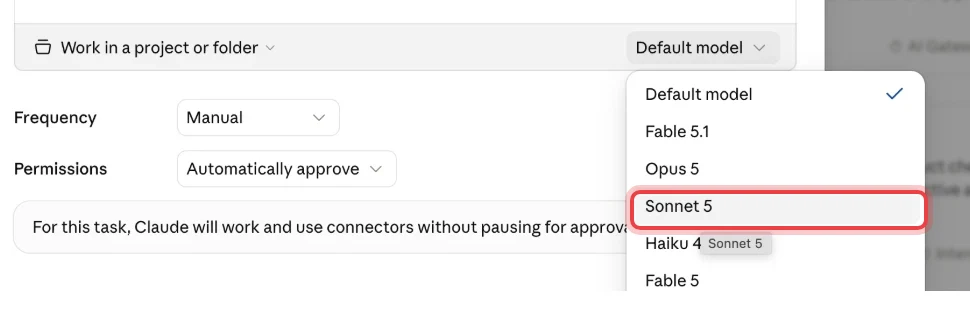
Pick the model
Open the model menu under the instructions box and choose Sonnet 5.
Step 5
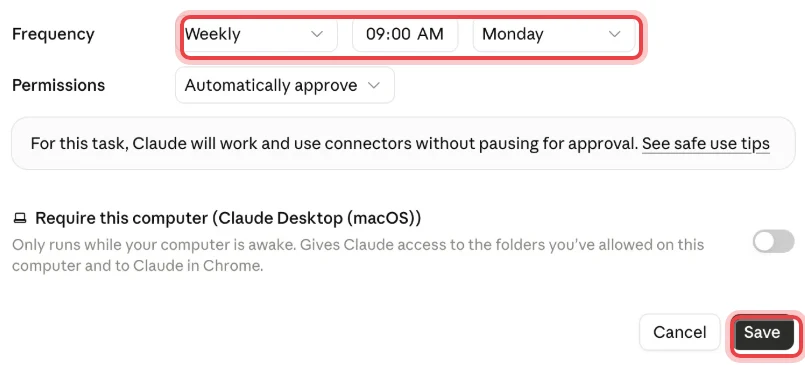
Set the schedule and save
Set Frequency to Weekly and pick a day and time. Leave permissions on Automatically approve, leave Require this computer off so it runs in the cloud, then Save.
90 seconds
Tell us how it went
Your feedback shapes the next workshop. We read every response.
Share your feedback